

Wix SEO Checklist: 30 Things to Fix Before (and After) You Launch
 IbtisamSEO Expert & Developer · 10 min read
This Wix SEO checklist covers the 30 things we check on every Wix site we launch: 15 before launch (page titles, URL slugs, headings, alt text, SEO patterns, dynamic page meta tags, structured data and speed), 7 on launch day (indexing, redirects, Search Console, Bing, analytics) and 8 in the months after. Wix handles the technical foundation for you; this list covers the settings and decisions it can't make for you.
Key takeaways
- Most Wix SEO problems we see come from settings left at their defaults, not from the platform. Fix them before Google first crawls the site.
- Use SEO patterns for blog posts, products and CMS dynamic pages so hundreds of pages get sensible titles and descriptions at once, then hand-edit the important ones.
- Set up 301 redirects in the URL Redirect Manager before you publish a rebuild, not after traffic drops.
- Connect Google Search Console through Wix's SEO setup checklist (it submits your sitemap for you), and verify Bing too.
- After launch, the work is content, reviews, links and watching Search Console. Settings get you to the start line; they don't win the race.
Wix renames menus every so often (newer dashboards label the SEO section "SEO & GEO"). If a label below has moved, search the Help Center for the setting name.
If you're still deciding whether Wix is the right platform for search, read Is Wix good for SEO? first. This post assumes you've chosen it and want to get the setup right.
Before launch: 15 things to fix while you build
1. Map one primary keyword to each page
Before touching settings, make a simple spreadsheet: page, primary keyword, URL slug. Each important search term should have one page that owns it; two pages chasing "wedding photographer Denver" compete with each other and both rank worse.
2. Connect your domain and a premium plan
Search Console connection through Wix requires a premium plan and a connected custom domain, and a free wixsite.com subdomain is a weak address to build rankings on anyway. Decide on your domain before launch so Google never indexes a temporary address you'll have to redirect later.
3. Fill in your business info
Add your business name, description, address, phone and hours in the dashboard's business info settings. Wix uses this information in places such as your site's default meta tags and structured data, and it should match your Google Business Profile exactly.
4. Write clean URL slugs
In each page's SEO settings, set a short, lowercase, hyphenated slug that reflects the page's keyword: /emergency-plumbing, not /copy-of-services-2. Change slugs now, while nothing links to them. Every slug you change after launch needs a redirect.
5. Write a unique title tag for every page
In the page's SEO settings (Basics tab), write a title under about 60 characters with the primary keyword near the front and your brand at the end. Wix's default title is often just the page name plus site name, which tells Google very little. The homepage title matters most and is the one most often left as "Home | My Site".
6. Write a meta description for every page
140–155 characters, including the keyword and a reason to click: a price, a location, a guarantee you can actually keep. Google rewrites descriptions it doesn't like, but a good one is used more often than not and improves click-through.
7. Use one H1 per page, and real heading levels
Every page needs exactly one H1 that says what the page is about, followed by H2s and H3s in order. Heading structure is one of the first things our Wix SEO team checks in an audit. In Wix, the text style you pick (Heading 1, Heading 2…) usually sets the HTML tag, and you can check or change the semantic tag in the text element's settings. A common Wix mistake is styling body text as "Heading 1" because it looks right. Check the mobile view too on the Classic Editor, where hidden elements can remove the H1 on mobile.
8. Add alt text to every meaningful image
Open each image's settings and fill in the alt text field (in the Classic Editor it's labelled along the lines of "What's in the image? Tell Google"). Describe the image plainly, with a keyword only where it fits naturally: "Kitchen remodel with white shaker cabinets in Plano, TX." Mark purely decorative images as decorative so screen readers skip them.
9. Compress images and keep pages light
Wix converts and resizes images through its CDN, but it starts from what you upload. Resize photos to roughly the largest size they'll display before uploading, and avoid multi-megabyte hero images. On most Wix sites we audit, unoptimized images and unused App Market widgets are the biggest causes of slow mobile pages.
10. Set SEO patterns for each page type
In SEO Settings, open the SEO patterns for blog posts, products, dynamic item pages and other page types. Patterns use variables (post title, product name, site name and so on) to generate titles, descriptions and social tags for every page of that type. A pattern like {Product Name} | Handmade Leather Goods | {Site Name} beats the default on hundreds of pages in one change. You can still override any single page.
11. Set meta tags on CMS dynamic pages
Dynamic item pages (one per CMS collection item, such as each property, team member or location) take their SEO settings from the dynamic page itself. Use + Add Variable to bind the title tag and meta description to collection fields, so every item gets unique tags. Add a dedicated "SEO description" field to the collection if your existing fields don't make good descriptions. Then deal with thin items: if some entries have three words of content, either enrich them or keep them out of the index.
12. Add structured data markup where Wix doesn't
Wix adds JSON-LD automatically for several page types, including blog posts, products and events. For the rest, open the page's SEO settings, go to the Advanced tab and use Structured data markup to add your own: Organization or LocalBusiness on the homepage, Service on service pages, BreadcrumbList where it helps. Test every snippet in Google's Rich Results Test. Structured data helps Google and AI engines understand the page; it doesn't guarantee a rich result.
13. Set social share images
In each important page's social share settings, choose an image (1200×630 works well) and check the title and description. Not a ranking factor, but shared links with a broken preview get fewer clicks.
14. Link pages to each other
Navigation menus aren't enough. Add two to four contextual links in the body of each page to related pages, with anchor text that describes the destination ("our kitchen remodeling process", not "click here").
15. Design a useful 404 page
Wix lets you customize the 404 page. Add links to your main sections so visitors who hit a broken link stay on the site.
Launch day: 7 things to check before and right after you publish
16. Turn indexing on for the site and every page
In SEO Settings, confirm Let search engines index your site is enabled. Then spot-check page-level settings: pages hidden from search engines during the build (often the whole site, if a designer was careful) need the page toggle switched back on. Leave it off only for pages that genuinely shouldn't be found, such as thank-you pages and member-only content.
17. Remove password protection
If you password-protected the site or pages while building, remove it. Password-protected pages aren't crawled or indexed, which is what you want during the build and the opposite of what you want at launch.
18. Set up 301 redirects in the URL Redirect Manager
If this site replaces an older one, every old URL that has traffic, rankings or backlinks needs a 301 redirect to its closest new equivalent. Wix's URL Redirect Manager (in SEO Settings) handles single redirects and bulk CSV imports of up to 500 redirects per file. Test a sample after publishing. This is the single most important item on the list for a redesign; our website migration service exists largely because of it.
19. Connect Google Search Console through the Wix SEO setup checklist
The Wix SEO setup checklist walks you through connecting Google Search Console. When you connect this way, Wix verifies the site and submits your sitemap automatically, and keeps the sitemap updated as you add pages. If you already have a Search Console property for the domain, you can verify with a meta tag in Wix's Site Verification tool instead.
20. Verify Bing Webmaster Tools
Bing's index powers Bing search and Copilot, much of DuckDuckGo's results and part of ChatGPT search, so it's worth the five minutes. Add Bing's verification meta tag through Wix's Site Verification tool (or import your site from Search Console inside Bing Webmaster Tools), then submit yourdomain.com/sitemap.xml. We explain why Bing matters for AI answers in how to get recommended by ChatGPT.
21. Check robots.txt and the sitemap
Open yourdomain.com/robots.txt and yourdomain.com/sitemap.xml in a browser. The default Wix robots.txt is sensible; if anyone edited it, make sure nothing important is disallowed and that search and AI search crawlers aren't blocked unless you mean it. Confirm your main pages, blog posts and dynamic item pages appear in the sitemap.
22. Connect GA4 and set up key events
Connect Google Analytics 4 through Wix's marketing integrations, then mark the actions that matter (form submissions, bookings, purchases, calls) as key events. Without them, you'll know traffic went up but not whether it brought customers.
After launch: 8 things to keep doing
23. Set up or update your Google Business Profile
For any business with a location or service area, this matters as much as the website for local searches. Use the same name, address, phone and categories as your site, link to the most relevant page, add photos and keep hours current.
24. Watch Search Console's Pages report for four weeks
Check the indexing report weekly after launch. Look for "Not found (404)", "Crawled – currently not indexed" and "Excluded by noindex tag" on pages you expected to rank. Use URL Inspection on your five most important pages and request indexing if they haven't been picked up.
25. Measure Core Web Vitals
Wix's Site Speed dashboard shows Core Web Vitals from real visitors once the site has enough traffic. PageSpeed Insights gives a lab view immediately. If mobile LCP is over 2.5 seconds, look at the hero image and above-the-fold apps first.
26. Fix 404s as they appear
Every new 404 in Search Console is either a redirect you missed or a broken internal link. Add the redirect in the URL Redirect Manager, or fix the link at its source.
27. Publish content that answers real questions
A 10-page site has 10 chances to rank. A blog or resource section that answers the questions customers ask before they buy ("how much does X cost", "X vs Y", "how long does X take") gives you many more, and those are the pages AI answers quote. Two strong posts a month beat eight thin ones.
28. Build reviews and links
Ask happy customers for Google reviews, list the business in the directories that matter in your industry, and pursue a handful of real links from local press, partners and associations.
29. Audit apps every six months
Remove App Market apps you no longer use. Each one can add scripts and page weight.
30. Rewrite titles and descriptions from real data
After three months, open Search Console's Performance report, sort pages by impressions, and look for pages with many impressions but low click-through. Rewrite their titles and descriptions to match the queries people actually used. It's often the fastest gain available on an established site.
The checklist at a glance
| Stage | Items | Where in Wix |
|---|---|---|
| Before launch | 1–15 | Page SEO settings, SEO Settings (patterns), CMS dynamic pages, image settings, business info |
| Launch day | 16–22 | SEO Settings (indexing, URL Redirect Manager, robots.txt), SEO setup checklist, Site Verification, marketing integrations |
| After launch | 23–30 | Search Console, Site Speed dashboard, Google Business Profile, blog, App Market |
How Wix Engine can help
We're a Wix Legend Partner and Wix Studio certified, and we run this checklist on Wix sites every week. Our Wix SEO services start from $500/month and cover technical setup, content planning, structured data, speed fixes and monthly reporting. If you'd rather have a one-time review, our SEO audit ($450) goes through all 30 points on your site and gives you a prioritized fix list. Replacing an old site? See our Wix website migration service for the redirect and cutover work.
FAQ
Is Wix's built-in SEO setup checklist enough?
For a small site in a quiet market, it covers the essentials: titles, descriptions, Search Console connection and a sitemap. It doesn't plan keywords, write content, set up redirects for a rebuild, add custom structured data or build reviews and links. Use it as a starting point, then work through the rest of this list.
How long does it take Google to index a new Wix site?
Connecting Search Console through Wix submits your sitemap immediately, and the homepage is often indexed within days. Full indexing of a larger site can take a few weeks. Ranking well for competitive terms takes months and depends far more on content and links than on how quickly you were indexed.
Do I need an SEO app from the Wix App Market?
Usually not. Wix's native SEO settings, patterns, redirect manager, structured data tool and Search Console integration cover what most SEO apps offer. Extra apps add page weight, so only install one if it does something specific you need and can't do natively.
Should I change URLs on my Wix site after launch?
Only when there's a clear reason, such as a slug that doesn't describe the page. When you change a page's URL, set up a 301 redirect from the old URL to the new one and update internal links. Changing many URLs at once can cause a temporary ranking dip while Google re-processes them.
What's the most common Wix SEO mistake you see?
Launching with indexing still switched off, or with whole sections hidden from search engines after the build. The next most common is a redesign launched without redirects, which can wipe out years of rankings in a few weeks.
Ibtisam
SEO Expert & Developer at Wix Engine
Runs technical SEO, AI search optimization and site audits at Wix Engine.
Keep reading
All articles → SEO & Marketing
How to Get Your Business Recommended by ChatGPT
How to get recommended by ChatGPT: how AI search picks sources, which crawlers to allow, the profiles and reviews that matter, and how to track results.
· 10 min read- SEO & Marketing
What Is Generative Engine Optimization (GEO)? A Practical Guide
Generative engine optimization explained: how ChatGPT, Perplexity and Google AI Overviews pick sources, what works in 2026, and how to measure it honestly.
· 10 min read 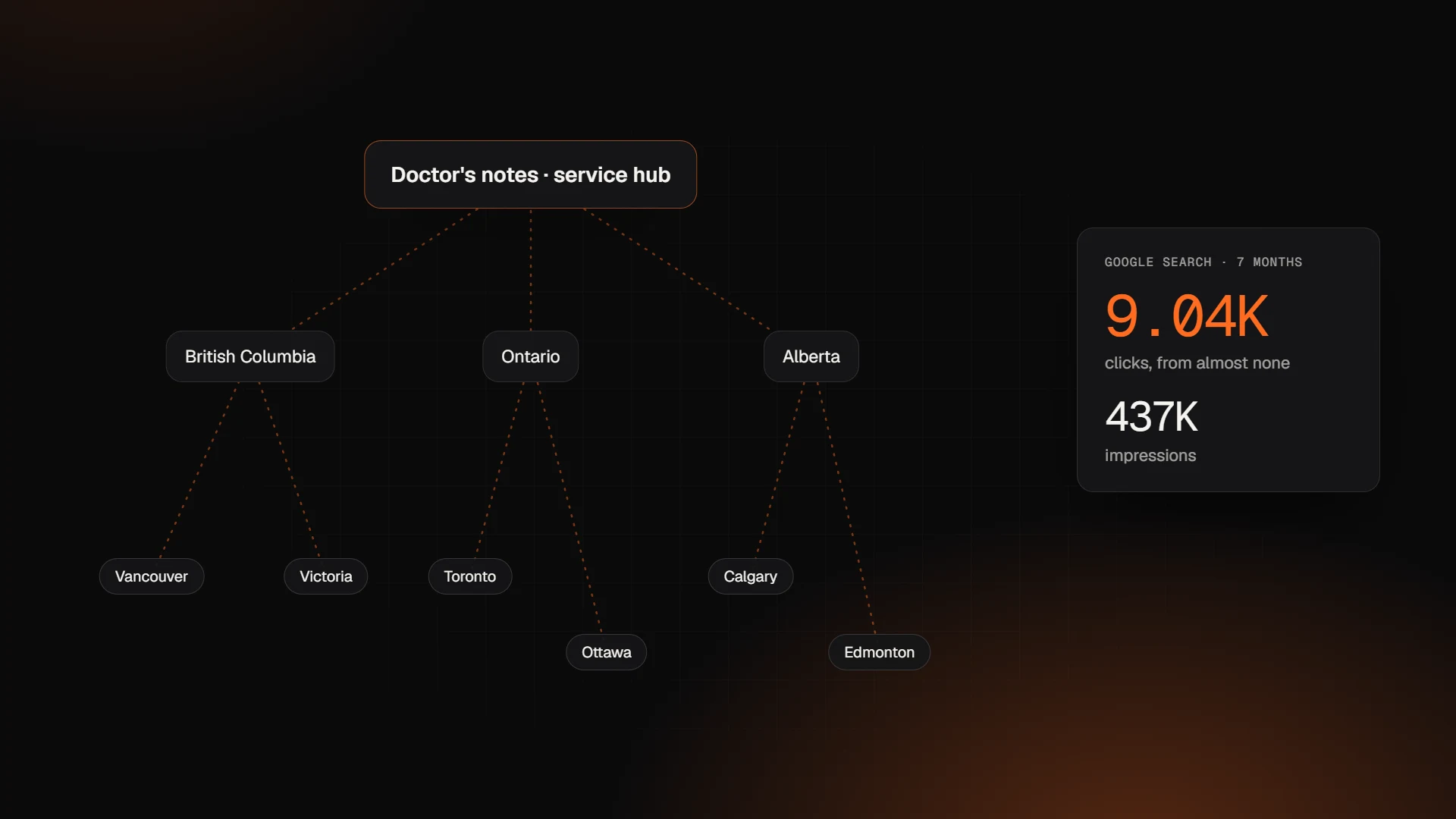 SEO & Marketing
Wix Local SEO: How to Rank in Many Cities Without Thin Location Pages
Wix local SEO case study: the province and city pages we built on Wix that took a site from almost no Google traffic to 9K+ clicks in seven months.
· 9 min read
Want an expert to look at your project?
Book a free 30-minute call with the Wix Engine team. You'll get honest advice and a detailed proposal within 24 hours.